
Episodes / Episode 4 of 9
SQL Server Licensing & Inventory: Find Every Server
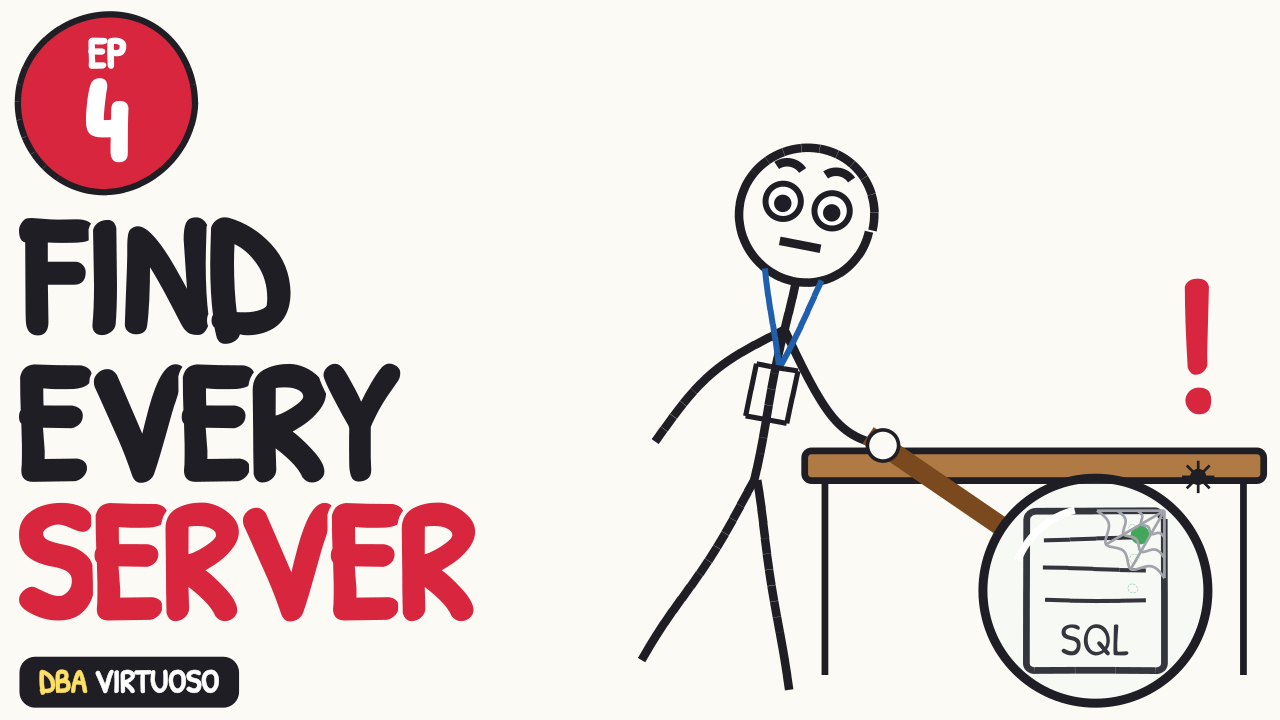
You can’t back up, patch, secure or license a server you don’t know exists, and there’s always one under Brad’s desk. How to find every SQL Server, and the licensing basics that cost real money when they’re wrong.
Watch on YouTubeFull course playlistSubscribe
In this episode
- Finding servers: old documentation, WMI, dbatools Find-DbaInstance, and SCCM
- What to write down for every instance
- Per-core licensing, and why licensing by VM needs Software Assurance starting with SQL Server 2022
- Standard vs Enterprise, the free Developer editions, and passive replicas
- Go to the source: Microsoft’s licensing guide
Chapters
Transcript
Read the full transcript
You can’t back up a server you don’t know exists. You can’t patch it. You can’t secure it. And you definitely can’t license it. And there is always one you don’t know exists. It’s under Brad’s desk.
Methods for finding servers
Every method misses something. So use all of them, and compare the lists. The servers that show up on one list but not the others are the interesting ones.
Start with what’s written down. Then assume it’s wrong. Brad’s spreadsheet was last updated in 2019, and three of those servers were turned off in 2021. One of them wasn’t, and nobody knows its password.
Every Windows server will tell you what services it’s running, if you ask it using WMI, Windows Management Instrumentation. Ask every server you can reach for any service with a name that starts with MSSQL. That’s a few lines of PowerShell. The free dbatools module has a command called Find-DbaInstance. It looks in Active Directory, it asks the network the same way SSMS, SQL Server Management Studio, does when you browse for servers, and it can scan whole IP ranges.
If your company runs SCCM, System Center Configuration Manager, it already has a software inventory of every machine it manages. Ask that team for a report of everything with SQL Server installed. Fun fact: Microsoft renamed it Microsoft Configuration Manager. Everyone still calls it SCCM.
For every instance you find:
Server and instance name. Version, edition, and patch level. Number of cores, because you’re about to need that. Production or not. Which app, and who owns it. HA and DR setup. Where the backups go.
Then keep it current. Episode 8 covers documentation and automation, and this list is the first thing you should automate.
Licensing
Licensing is the one topic in this course where being wrong costs real money. I’m going to give you the basics. Then I’m going to tell you to go to the source.
The most common way to license SQL Server is per core, sold in two-core packs.
If you license the physical server, you license every physical core, with a minimum of four per processor.
If you license just the virtual machine, you license its virtual cores, with a minimum of four per VM. But here’s the catch that gets people: starting with SQL Server 2022, you can only license by VM if you have Software Assurance. No Software Assurance, no licensing by VM.
Enterprise costs almost four times as much as Standard. At the time of this recording, Microsoft’s list price for Enterprise is $15,123 per two-core pack, and Standard is $3,945.
Standard edition tops out at the lesser of 4 sockets or 32 cores, and 256 GB of SQL RAM. If your server fits under that, and you don’t need an Enterprise feature, you don’t need Enterprise.
So before anybody buys Enterprise, ask them which Enterprise feature they need. “It’s what we’ve always bought” is about an eleven-thousand-dollar-per-two-cores answer.
The Developer editions are free. In SQL Server 2025 there’s an Enterprise Developer and a Standard Developer, and both are licensed for non-production use only.
If your dev and test servers are running paid Enterprise licenses, you’re lighting money on fire. If your production server is running Developer edition, you’re lighting your career on fire.
Use Standard Developer to test apps that run on Standard in production, so developers can’t use a feature that production doesn’t have.
With Software Assurance, you get free passive replicas for failover: one for high availability, one for disaster recovery, and one for disaster recovery in Azure. That can cut the cost of an availability group down to one fourth, if you can take advantage of all three freebies.
But passive means passive. The minute somebody starts running reports on that secondary, it isn’t passive anymore, and it needs licenses.
Read Microsoft’s SQL Server licensing guide yourself. Then call your reseller. Then read the licensing guide again, because the reseller is trying to sell you something.
Keep your inventory current, and it doubles as your license count. When the auditors show up, you want to hand them a spreadsheet, not go on a scavenger hunt.
I’ve been there when Microsoft showed up to do a true-up, and the SQL Server licensing cost was 3x higher than what was budgeted, because someone started a rumor that we had an agreement with Microsoft for unlimited SQL Server licenses. Don’t let that happen to you.